
Operations teams manage a constant flow of requests, approvals, records, deadlines, and updates. When these tasks rely on spreadsheets, emails, and manual data entry, delays and errors can affect the entire business.
Zoho Creator supports workflow automation through form-triggered actions, scheduled tasks, approval workflows, visual process management, custom functions, and integrations. Its form-based database features help teams collect structured information, validate records, connect related data, and track operations through reports and dashboards. Together, these capabilities help businesses build applications around their actual processes instead of relying on disconnected tools.
In this guide, we explore the key Zoho Creator features and explain how operations teams can use them to improve everyday business activities. Businesses looking to build tailored solutions can also explore Zoho Creator app development for custom operational applications.
What Is Zoho Creator Workflow Automation?
Zoho Creator is a low-code application development platform that helps businesses build custom applications for managing data and automating processes.
Instead of developing every application from scratch, teams can use visual builders, configurable forms, workflow rules, and reusable components to create solutions for their specific needs.
Workflow automation means setting up rules that trigger actions when a particular event or condition occurs. For example, when an employee submits a purchase request, the system can validate the information, notify the relevant manager, and update the request status after approval.
Zoho Creator supports both straightforward automations and more advanced processes that involve multiple stages, conditional logic, and connected applications.
Its cloud-based workflow automation capabilities also help authorised users access business applications and records through supported web and mobile experiences.
1. Form-Based Data Collection and Database Management
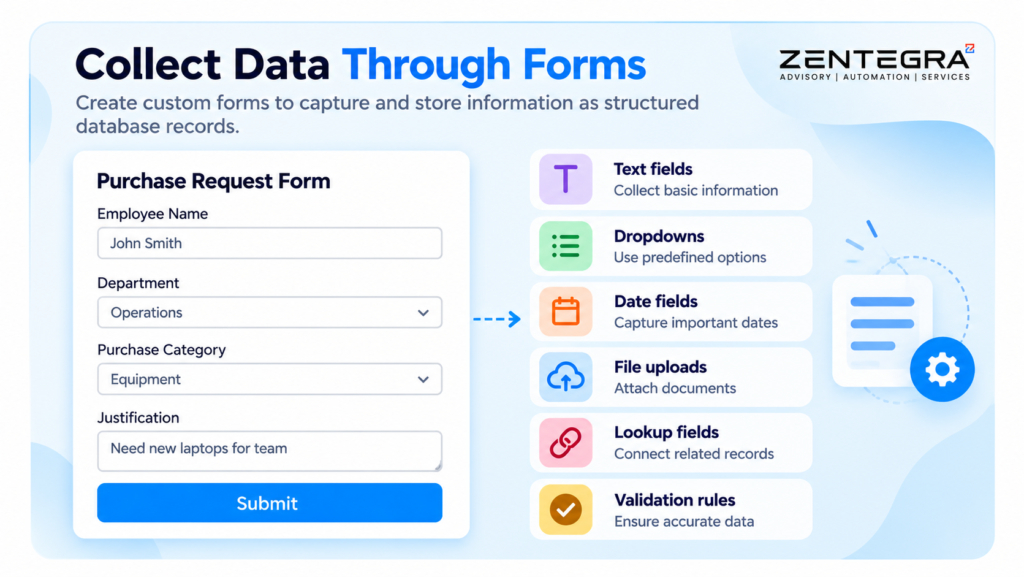
Forms are the foundation of many Zoho Creator applications. They provide a structured way to collect information and store it as database records.
Operations teams can create forms for purchase requests, employee onboarding, inventory updates, maintenance reports, vendor registration, and customer service requests.
Flexible form fields
Zoho Creator supports a range of field types for collecting different kinds of information. Depending on the business requirement, a form can include text, numbers, dates, email addresses, dropdowns, lookups, file uploads, and other supported fields.
These options help teams standardise how information enters the system.
Field validation and conditional behaviour
Teams can configure mandatory fields, validation rules, default values, and display settings. They can also use form workflows to show or hide fields, validate entries, and respond to user input.
For example, a purchase request form could require a justification when an employee selects a high-value purchase category.
This reduces incomplete submissions and limits unnecessary follow-up.
Connected records and database relationships
Forms can store information about related business entities, such as employees, vendors, products, and requests. Lookup fields and relationships help teams connect relevant records instead of repeatedly entering the same details.
For example, a purchase order can reference a vendor record and link its line items to product records.
This creates a more organised database and supports more reliable reporting. For more practical guidance, explore Zoho Creator forms and workflow automation to understand how forms and automated processes work together.
Learn more about Zoho Creator’s form builder.
2. Event-Based Workflow Automation
One of the most useful features for operations teams is the ability to trigger actions based on form activity.
Zoho Creator supports form-based workflow automation for record events such as creating, editing, or deleting records. Teams can also configure actions around stages of form interaction, including field input and form submission.Teams can also configure actions around stages of form interaction, including field input and form submission.
Common automation actions include:
- Sending email and other supported notifications.
- Updating fields and record statuses.
- Creating or modifying related records.
- Validating information before submission.
- Calling custom functions or APIs.
- Connecting workflows with other applications.
Practical example: Employee onboarding
Imagine that an HR team uses a custom onboarding application.
When HR creates a new employee record, the workflow can assign an onboarding status and notify the responsible team. When the employee submits required documents, another workflow can update the record and alert the reviewer.
The team no longer needs to send every reminder manually.
These rules also create a consistent process, making it easier to manage onboarding as the number of employees grows.
3. Scheduled Workflows and Automatic Reminders
Some business tasks depend on dates rather than user actions. Zoho Creator supports form-based workflow automation for record events such as creating, editing, or deleting records. Teams can also configure actions around stages of form interaction, including field input and form submission.
Depending on the schedule type and plan, teams can configure recurring tasks, reminders, updates, and other automated actions.
Examples include:
- Sending maintenance reminders before service dates.
- Notifying managers when an approval deadline approaches.
- Updating records when a warranty expires.
- Reminding staff about pending tasks.
- Generating scheduled reports for operational reviews.
Consider an equipment maintenance team responsible for hundreds of assets. Each asset record contains its next service date. A scheduled workflow can notify the assigned technician when maintenance is due.
This reduces reliance on personal calendars and manual tracking.
Important: Zoho Creator distinguishes between form-based schedules and custom schedules, and availability can depend on the schedule type and subscription plan. Check the current plan details before designing a business-critical process.
4. Multi-Level Approval Workflows
Approvals are essential for procurement, finance, HR, and other operational functions. Manual approval chains often create delays because employees must identify the right reviewer and follow up repeatedly.
Zoho Creator supports configurable approval workflows that route records to designated approvers. Teams can define approval criteria, multiple approval levels, and actions for approval or rejection.
How approval automation works
A typical process follows these steps:
- An employee submits a request through a form.
- The workflow evaluates the request against configured conditions.
- The system routes the record to the appropriate approver.
- The approver reviews the details and makes a decision.
- The workflow performs the configured actions based on that outcome.
Example: Purchase request management
A company may require department manager approval for routine purchases and additional finance approval for higher-value requests.
The workflow can route requests according to the configured rules. Once approved, it can update the status and notify the purchasing team.
This improves consistency and helps employees understand where a request stands.
Approval workflows should still reflect the company’s authority limits, escalation rules, and internal controls. Test every approval path before deploying it.
5. Blueprints for Structured Business Processes
While event-based workflows automate individual actions, Blueprints help teams manage an entire process through defined stages and transitions.
A Blueprint can represent a process such as:
Request submitted → Initial review → Manager approval → Processing → Completed
Each stage represents a point in the process. Transitions define how a record moves from one stage to another and can include conditions, permissions, information collection, and automated actions.
Why operations teams use Blueprints
Blueprints help organisations establish consistent procedures. They can prevent records from moving forward until the required conditions are met and help users understand the next action.
For example, a vendor onboarding process may require registration, document verification, contract approval, and activation.
A Blueprint can guide the team through these stages and trigger relevant actions during transitions.
This is particularly valuable when several departments share responsibility for completing a process.
Check the current Creator documentation and subscription terms when planning Blueprint functionality, as feature availability can vary by Creator version and plan.
6. Reports, Views, and Operational Dashboards
Collecting data is only useful when teams can find and interpret it. Zoho Creator supports reports and different views that help users manage records and monitor progress.
Depending on the application design, teams can use list, spreadsheet, calendar, Kanban, pivot, and other supported report formats.
They can sort, filter, and group records to focus on specific operational needs.
For example, an operations manager could review:
- Purchase requests awaiting approval.
- Maintenance tasks due this week.
- Open support requests by priority.
- Vendor records awaiting verification.
- Completed tasks by department.
Dashboards can bring important reports and metrics together in one place.
This gives managers a clearer view of workload, delays, and outstanding actions. It also helps teams identify bottlenecks before they affect service delivery.
However, dashboards only provide useful insights when teams maintain accurate data and define meaningful performance indicators.
7. Custom Functions and Deluge Scripting
Some business processes need more than standard workflow actions. Zoho Creator supports Deluge, Zoho’s scripting language, which teams can use to implement custom business logic.
Operations teams can use Deluge functions for calculations, conditional processing, record updates, and other tasks that require more control.
For example, a stock management application could calculate available stock from incoming and outgoing transactions and flag items that fall below a defined threshold.
Custom functions can also support reusable logic across workflows, helping teams avoid maintaining separate versions of the same business rule.
This capability makes Zoho Creator suitable for processes that combine visual configuration with more advanced automation.
Teams with limited development experience can begin with simpler workflows and involve a developer when the process requires complex scripting or integration logic.
8. Integrations With Other Business Applications
Operations rarely happen inside one application. Sales, accounting, inventory, customer support, and project teams often depend on shared information.
Zoho Creator supports integrations with Zoho applications and external services through available connectors, APIs, and custom integration options. For workflows that connect multiple business applications, Zoho Flow for business automation can help coordinate processes across supported services.
For example, a business could connect a custom order-processing application with its accounting or CRM system, subject to the available integration capabilities and configuration.
A typical integrated workflow might:
- Capture an order through a form.
- Validate the order details.
- Send the relevant information to a connected application.
- Record the response or update the local status.
- Notify the responsible team if an action requires attention.
Integration workflows can reduce duplicate data entry and help keep business processes connected.
Before implementation, confirm authentication requirements, field mappings, API limits, error handling, and the availability of the required connectors.
Explore Zoho Creator’s integration options.
9. AI Workflow Automation Tools and Zia
AI is becoming an important part of modern workflow automation software. Zoho Creator offers AI-assisted capabilities through Zia, Zoho’s AI assistant, subject to configuration, supported features, and applicable plan requirements.
These capabilities can help users develop applications and workflows from natural-language descriptions, generate or optimise Deluge scripts, and build process structures more efficiently.
For example, a team could describe a maintenance request application with equipment details, technician assignment, approval stages, and service reminders. AI-assisted app creation can help establish an initial structure that the team can review and customise.
Creator also documents AI capabilities that can support tasks such as text processing and configured AI-driven actions.
However, AI does not remove the need for business rules, permissions, testing, or human oversight. Teams should review generated workflows carefully, particularly when they affect payments, approvals, sensitive records, or important operational decisions.
For current details, review Zoho Creator’s AI-assisted automation features.
Which Zoho Creator Features Should Operations Teams Prioritise?
The right starting point depends on the problem your team wants to solve.
Operational need | Relevant Zoho Creator feature | Practical benefit |
Standardise information collection | Forms and validation | More consistent records |
Automate actions after submission | Form workflows | Less manual processing |
Manage recurring deadlines | Scheduled workflows | Fewer missed reminders |
Route requests for approval | Approval workflows | Clearer decision paths |
Enforce process stages | Blueprints | More consistent procedures |
Monitor outstanding work | Reports and dashboards | Better operational visibility |
Handle complex business rules | Deluge functions | Greater customisation |
Connect applications | Integrations and APIs | Less duplicate data entry |
Accelerate app development | Zia-assisted capabilities | Faster initial configuration |
The most effective implementation often combines several features rather than relying on one automation rule.
For example, a purchase management application may use forms to capture requests, validation to improve data quality, approvals to control spending, integrations to share approved information, and dashboards to monitor processing times.
How to Implement Workflow Automation Successfully
Before adopting new workflow automation software, operations teams should understand their existing process and identify where delays or errors occur. Businesses planning to automate more processes can explore Zoho automation strategies for business growth to identify opportunities across different departments.
Follow these practical steps:
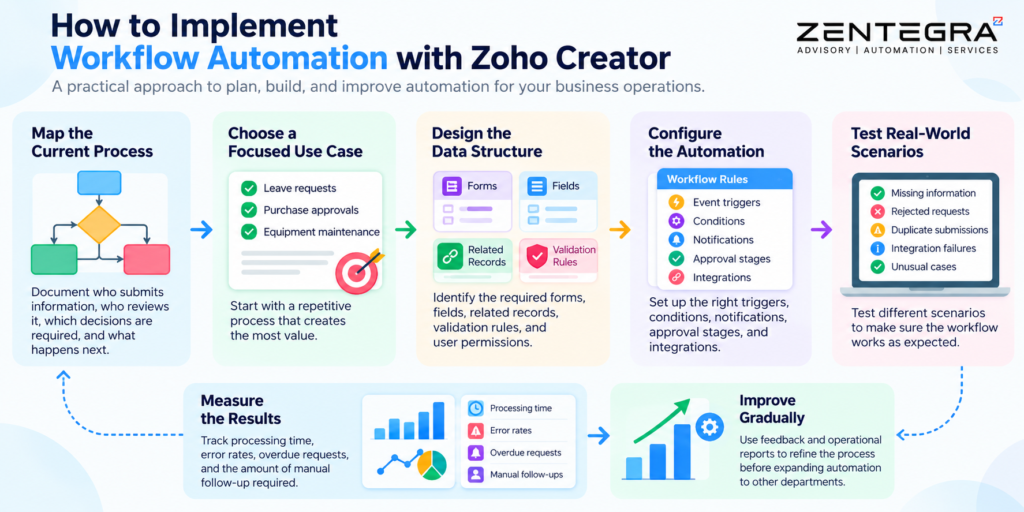
1. Map the current process: Document who submits information, who reviews it, which decisions are required, and what happens next.
2. Choose a focused use case: Start with a repetitive process, such as leave requests, purchase approvals, or equipment maintenance.
3. Design the data structure: Identify the required forms, fields, related records, validation rules, and user permissions.
4. Configure the automation: Select the appropriate event triggers, conditions, notifications, approval stages, and integrations.
5. Test real-world scenarios: Include missing information, rejected requests, duplicate submissions, integration failures, and unusual cases.
6. Measure the results: Track processing time, error rates, overdue requests, and the amount of manual follow-up required.
7. Improve gradually: Use feedback and operational reports to refine the process before expanding automation to other departments.
A phased approach helps teams learn what works without introducing unnecessary complexity.
Frequently Asked Questions
Yes. Zoho offers workflow automation across several applications, including Zoho Creator, Zoho CRM, and Zoho Flow. In Zoho Creator, users can automate form submissions, email notifications, approval processes, scheduled tasks, and record updates. These features help operations teams reduce manual work, improve data accuracy, and manage business processes more efficiently.
Microsoft Power Automate is commonly used for workflow automation in enterprise operations. It helps businesses automate repetitive tasks, connect Microsoft 365 applications, integrate supported third-party services, and create approval workflows. Organisations can use it to automate processes involving Outlook, SharePoint, Teams, and other connected systems.
Yes. Zoho applications can integrate with Microsoft Teams through supported connectors, APIs, webhooks, or third-party integration services, depending on the application and use case. These integrations can help teams share notifications, coordinate tasks, and exchange business information. Before implementation, check the specific Zoho application’s integration options and any required configuration.
Zoho uses different database technologies across its products and services. Zoho Creator provides a managed, form-based data layer that stores application records and supports relationships, reports, and workflow automation. The underlying database technology can vary by product and service, and Zoho does not publicly establish one database engine as the universal database for every Zoho application. Users building applications in Zoho Creator generally do not need to manage the underlying database infrastructure themselves.
Conclusion
Effective workflow automation does more than save time. It creates a consistent way to collect information, make decisions, track responsibilities, and manage work across departments.
Zoho Creator brings these capabilities together through form-based databases, event-driven workflows, scheduled actions, approval processes, Blueprints, reporting, custom functions, integrations, and AI-assisted development.
For operations teams, the best starting point is a clearly defined process with measurable problems. Automate that process, validate the results, and expand when the workflow delivers reliable improvements.
Zentegra helps businesses explore Zoho-based business automation and application solutions tailored to their operational needs. Visit Zentegra to learn more about its business automation services and how a well-designed digital workflow can support more organised, efficient operations.