
Managing inventory becomes difficult when a small business relies on spreadsheets, manual stock checks, and separate vendor records. Zoho Inventory management brings these activities together by connecting inventory tracking, reorder levels, vendors, purchase orders, and replenishment in one system.
For small businesses looking to improve their inventory processes, Zentegra helps businesses make better use of Zoho solutions to streamline day-to-day operations. With Zoho Inventory management, businesses can monitor stock levels, manage vendors, create purchase orders, and respond to low-stock situations from a connected system.
So, how does Zoho Inventory actually handle purchase orders, vendor management, and low-stock alerts?
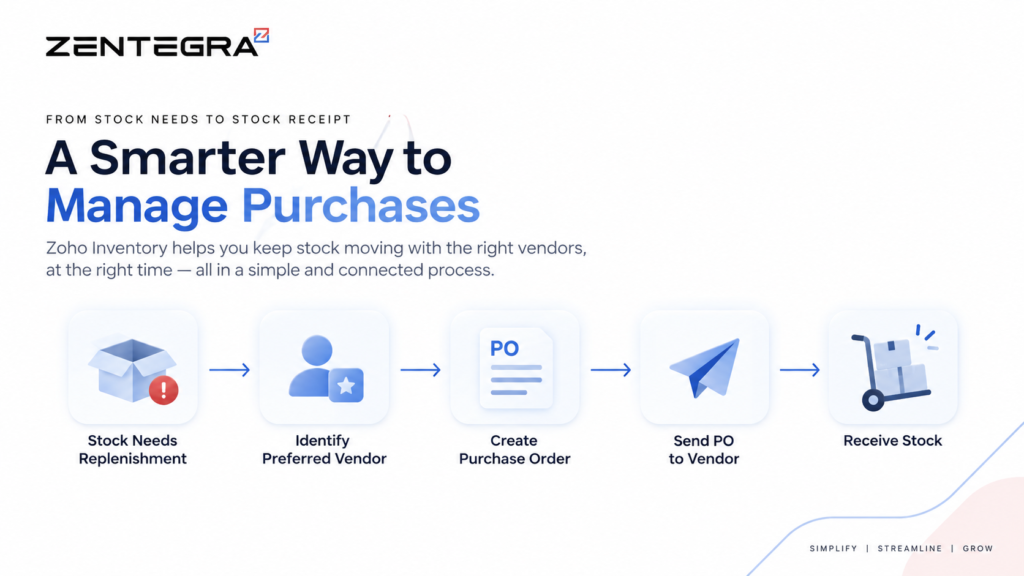
The process is straightforward: set a reorder level → monitor stock → receive a low-stock notification → identify the preferred vendor → select the products and quantities → create a purchase order → replenish the stock. Zoho Inventory supports this workflow through its item, vendor, purchase order, and replenishment features.
For small businesses, this means less manual stock checking and a more organized way to decide what to reorder, when to reorder it, and from whom. Businesses looking to understand the broader capabilities of a Zoho Inventory management system can also explore how it supports inventory, sales, warehouse, and order workflows.
How Does Zoho Inventory Management Work?
A Zoho inventory management system helps businesses keep product, stock, purchasing, and vendor information connected.
Instead of checking several spreadsheets to find out whether a product needs to be reordered, a business can configure inventory items with reorder levels and preferred vendors. When stock reaches the defined reorder point, Zoho Inventory can notify the relevant user and help start the replenishment process.
This makes the system particularly useful for businesses that regularly purchase products from suppliers.
Businesses managing online sales or multiple storage locations may also benefit from understanding inventory management for eCommerce and multi-warehouse operations, particularly when stock needs to be tracked across different channels or locations.
What happens when you add an inventory item?
A business can create an item in Zoho Inventory and configure information related to its stock management. Depending on the business process, this can include inventory tracking, reorder levels, and a preferred vendor.
The reorder level is important because it tells the system when the business should consider replenishing that product.
For example, a retailer selling 100 units of a product each month may decide that keeping 20 units as the reorder point gives enough time to purchase and receive new stock.
The actual reorder level should depend on the product’s sales rate, supplier lead time, seasonal demand, and the amount of safety stock the business wants to maintain.
How does Zoho Inventory know when stock is low?
Zoho Inventory uses the reorder level configured for an item.
When the item’s quantity reaches the defined reorder point, the business can receive a reorder notification if low-stock notifications are enabled. Zoho also provides a Low Stock filter that can be used to identify products that need attention.
This is an important difference from manual inventory tracking. Instead of checking every product every day, the business can focus on items that have reached their defined threshold.
How Does Zoho Inventory Handle Purchase Orders?
Purchase orders are one of the main tools Zoho Inventory provides for managing purchases from vendors. A Zoho Inventory purchase order is an official document that tells a vendor what the business wants to purchase, including the products, quantities, and agreed prices. Zoho Inventory provides options to create, update, issue, cancel, submit, and approve purchase orders.
A purchase order is an official document that tells a vendor what the business wants to purchase, including the products, quantities, and agreed prices. Zoho Inventory allows businesses to create and manage these purchase orders and send them to vendors.
How do you create a purchase order in Zoho Inventory?
A business can create a purchase order from the Purchase Orders module.
The user selects an existing vendor or adds a new vendor, enters the required purchase details, adds the products and quantities, and saves the purchase order. Zoho Inventory also supports information such as expected delivery dates, shipment preferences, notes, and terms and conditions.
The purchase order can then be saved as a draft or sent to the vendor.
This gives small businesses a formal record of what they have ordered instead of relying on informal messages or manually maintained spreadsheets.
What information can a Zoho Inventory purchase order contain?
A purchase order can include important purchasing information such as:
- Vendor details
- Purchase order number
- Products
- Quantities
- Prices
- Expected delivery date
- Shipment preferences
- Notes
Terms and conditions
This information gives the purchasing team and vendor a common reference for the order.
Can Zoho Inventory create purchase orders for low-stock items?
Yes. This is where Zoho Inventory becomes more useful than a basic purchase-order tool.
When a configured replenishment reaches its reorder point, the item can appear under Pending Replenishment. The user can then choose the option to create a purchase order for the replenishment.
This connects stock management directly to purchasing.
Instead of noticing that a product is running low and starting the purchasing process from scratch, the business can use the replenishment information already available in Zoho Inventory.
How Does Zoho Inventory Handle Vendor Management?
Vendor management is closely connected to purchasing.
A small business may have dozens of products but only a handful of regular suppliers. Remembering which supplier provides each product can become difficult as the business grows.
Zoho Inventory allows businesses to maintain vendor information and associate preferred vendors with inventory items.
A business can set a preferred vendor in Zoho Inventory for an item. When that product falls below its reorder point, the preferred vendor can be used as part of the reordering process.
How do you assign a preferred vendor to an item?
A business can set a Preferred Vendor for an inventory item.
Zoho defines preferred vendors as vendors selected for reordering items when their stock becomes low. When an item falls below its reorder point, the business can use that vendor as part of the reordering process.
For example, imagine a small stationery business that purchases notebooks from Vendor A and pens from Vendor B.
The business can associate each product with its preferred supplier. When notebooks need to be replenished, the purchasing employee does not have to search through old invoices to determine which vendor normally supplies them.
How does Zoho identify vendors for low-stock products?
This is one of the more practical parts of Zoho Inventory’s vendor workflow.
Under the Vendors module, businesses can use the Vendor – Reorder Items filter to identify vendors associated with products whose stock has fallen below their reorder point.
This means the business can approach replenishment from the vendor side as well as the product side.
Instead of asking:
“Which products are low?”
the purchasing employee can also ask:
“Which vendors have products that need to be reordered?”
That can make repeat purchasing easier for small teams.
Can you reorder directly from a preferred vendor?
Yes.
Zoho’s documented workflow allows the user to select a vendor, choose Order Now, and open a new purchase order containing the low-stock items associated with that vendor. The user can then select the products, enter the quantities, and add them to the purchase order before sending it to the vendor.
This is an important part of vendor management because the vendor record is not isolated from the inventory workflow.
The preferred vendor can become part of the replenishment process itself.
How Does Zoho Inventory Handle Low-Stock Alerts?
Low-stock alerts help businesses identify products that require attention before they run out completely.
Zoho Inventory allows businesses to enable low-stock notifications when an item’s quantity reaches its reorder point. Businesses can also select an email address to receive the low-stock notification. Users can also choose an email address to receive low-stock notifications.
What is a reorder level in Zoho Inventory?
A reorder level is the inventory quantity at which a business wants to begin replenishment.
Suppose a small online retailer sells a particular product quickly and wants to maintain at least 25 units in stock.
The business could set the reorder level at 25 units.
When the item’s quantity reaches that threshold, Zoho Inventory can notify the designated user, prompting them to review the product and begin replenishment.
The right number will vary from product to product. Businesses should consider:
- Average sales
- Supplier lead time
- Seasonal demand
- Safety stock
- Minimum supplier order quantities
Available storage space
How do you enable low-stock notifications?
Zoho’s current documentation provides a specific setting for this.
Businesses can enable the option to receive notifications when an item’s quantity drops below or reaches its reorder point and select an email address for the low-stock notifications.
The business must also set reorder levels for the inventory items it wants to monitor.
Without a meaningful reorder level, a low-stock alert cannot provide much value because the system does not know when the business wants to start replenishing that product.
Does Zoho automatically purchase the stock?
Not in the sense of blindly buying inventory whenever stock reaches a threshold.
The important distinction is that Zoho Inventory can identify the replenishment requirement and help the user create a purchase order.
In the replenishment workflow, once an item reaches its reorder point, it can appear under Pending Replenishment. The user can then select the purchase-order option and continue with the order.
This gives the business control over the actual purchase decision.
That matters because stock levels alone do not always tell the full story. A business may have an upcoming promotion, a delayed supplier, seasonal demand, or a change in customer demand that requires a different order quantity.
How Purchase Orders, Vendors and Low-Stock Alerts Work Together
This is where the different parts of Zoho Inventory management come together.
The workflow can be summarized as:
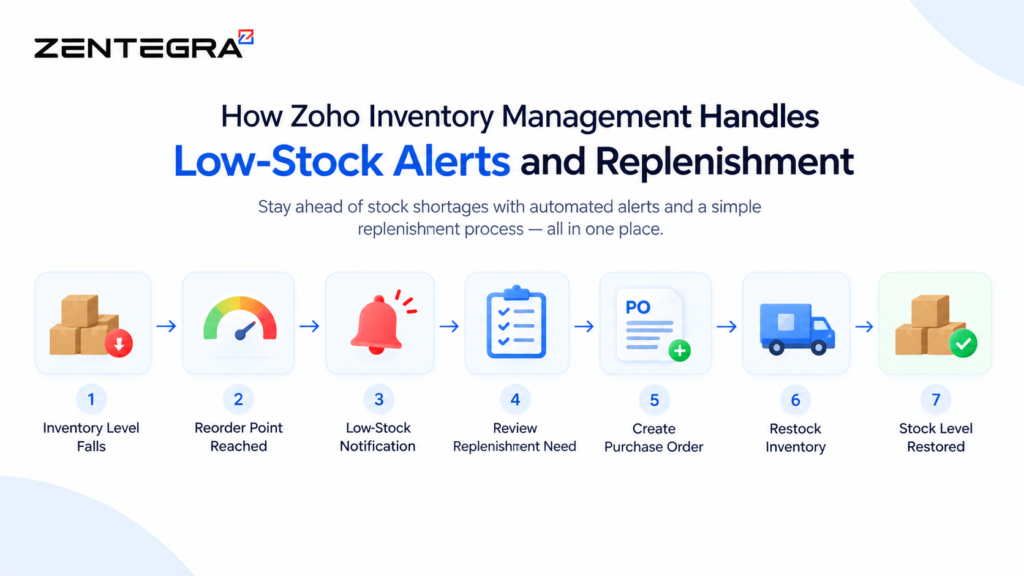
Inventory tracking → Reorder level → Low-stock alert → Preferred vendor → Replenishment → Purchase order → New stock
Zoho’s replenishment workflow can be configured around reorder levels, preferred vendors, maximum stock levels, minimum and maximum order quantities, and other purchasing rules. This gives businesses more control over how inventory is replenished.
Here is how it works in practice:
Stage | What happens |
1. Track inventory | Zoho Inventory keeps the item’s stock information available |
2. Set reorder level | The business defines when replenishment should begin |
3. Stock reaches threshold | The item enters the low-stock/replenishment workflow |
4. Notification | The designated user can receive a low-stock notification |
5. Identify vendor | The preferred vendor can be used for the reorder |
6. Review quantity | The business decides how much to purchase |
7. Create PO | A purchase order is created for the required products |
8. Send to vendor | The purchase order can be sent to the supplier |
9. Receive stock | New inventory is received and stock levels are updated |
Zoho’s replenishment settings can also include a maximum stock level, minimum and maximum order quantities, unit multiples, and replenishment frequency. These controls can help businesses avoid ordering too little or buying more stock than they need.
Example: How a Small Business Can Use Zoho Inventory
Consider a small Bengaluru-based cosmetics retailer that sells a popular skincare product.
The retailer sells around 400 units of the product every month. Its supplier usually takes several days to deliver a new batch, so the business does not want to wait until its stock reaches zero.
The retailer sets a reorder level for the product.
It also assigns its regular supplier as the preferred vendor.
As stock reaches the reorder point, Zoho Inventory can notify the designated user. The user can then identify the low-stock product, review the preferred vendor, decide the quantity required, and create a purchase order.
The order can be sent to the supplier. Once the new products arrive, the business can record the receipt and continue monitoring the stock.
The important point is that the retailer does not need to treat these as separate tasks.
The low-stock information leads into the replenishment process, and the replenishment process leads into purchasing.
That is the practical value of connecting inventory tracking, vendor management, and purchase orders.
What Are the Benefits of Zoho Inventory Management for Small Businesses?
Reduce manual stock checking : Businesses do not need to rely entirely on employees remembering to check every product. Reorder levels and low-stock notifications help direct attention toward products that need action.
Reduce the risk of stockouts : A business can start replenishment before an item reaches zero stock. This can help reduce situations where customers want to purchase a product that is unavailable.
Make repeat purchasing easier : Preferred vendors and reorder workflows can simplify recurring purchases.
Keep vendor and purchasing information organized : Purchase orders and vendor records provide a structured way to maintain purchasing information.
Improve inventory visibility : A centralized inventory system gives businesses a clearer view of stock levels and replenishment requirements.
Is Zoho Inventory Management Right for Your Small Business?
A Zoho inventory management system can be a good fit for small businesses that have moved beyond basic spreadsheet tracking and need a more structured purchasing workflow.
It can be particularly useful if your business:
- Manages multiple SKUs
- Regularly purchases stock from vendors
- Deals with recurring low-stock situations
- Needs purchase-order records
- Wants better inventory tracking
- Works with preferred suppliers
Needs to coordinate inventory across locations
However, businesses should also evaluate their transaction volume, users, locations, and required features before selecting a plan.
Zoho’s current pricing structure has different plans with different limits for orders, purchase orders, users, and locations. Features such as replenishment and vendor-portal functionality also vary by plan, so businesses should check the current plan comparison before making a purchasing decision.
Get Started With Zoho Inventory Management
Effective inventory management is more than knowing how many products are currently in stock.
A business also needs to know when stock is becoming low, which vendor supplies the product, how much should be reordered, and how the purchase should be recorded.
That is where Zoho Inventory management can provide value for small businesses.
Its purchasing, vendor, inventory tracking, low-stock, and replenishment features can work together to create a more structured process:
Track stock → detect low inventory → identify the vendor → review quantities → create the purchase order → replenish stock.
For a growing business that is still relying heavily on spreadsheets or manual stock checks, moving to a properly configured Zoho inventory management system can provide better visibility and make routine purchasing easier to control.
The technology is only one part of the process, though. The real value comes from configuring products, vendors, reorder levels, purchasing workflows, and business rules correctly from the beginning.
If your business is considering Zoho Inventory, Zentegra can help you evaluate the workflow, configure the system around your business requirements, and build an inventory process that is easier to manage as your business grows.