Artificial Intelligence is transforming the way businesses interact with customers and manage sales. Zoho CRM’s Zia Agent is one of the latest AI-powered capabilities that helps organizations automate tasks, answer customer queries, execute CRM actions, and improve team productivity.
Whether you’re a CRM administrator, business owner, or developer, this guide will walk you through deploying a Zia Agent in Zoho CRM from scratch.
By the end of this tutorial, you’ll have a fully configured Zia Agent ready to assist your users.
What is Zia Agent?
Zia Agent is an AI-powered assistant within Zoho CRM that can:
- Answer business-related questions
- Retrieve CRM information
- Perform CRM actions
- Guide users through workflows
- Automate repetitive tasks
- Assist sales and support teams
- Integrate with CRM modules and business processes
Unlike traditional chatbots, Zia Agent understands natural language and performs
intelligent actions based on your CRM data and permissions.
Pre-Requests
Before you begin, make sure you have:
- A Zoho CRM account
- Administrator privileges
- Access to Zia Agent (supported edition)
- Required CRM modules configured
- Internet connection
- Basic understanding of your CRM structure
If you’re new to Zoho CRM, start with our Zoho CRM Beginner Guide to understand the platform, modules, and navigation before configuring Zia Agent.
Step 1: Log in to Zoho CRM
1. Open your browser.
2. Navigate to Zoho CRM.
3. Sign in using your administrator credentials.
After logging in, you’ll reach the CRM dashboard.
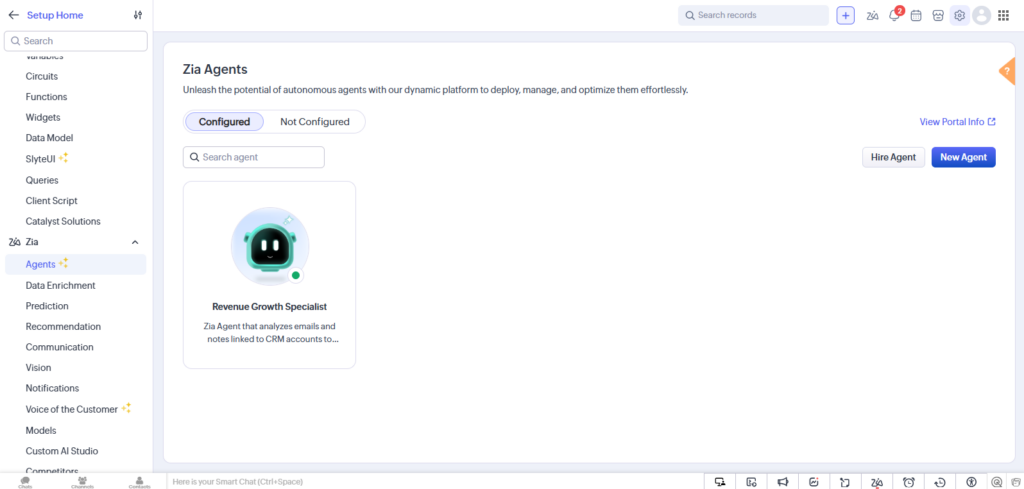
Step 2: Open Zia Settings
- Click the Setup (gear) icon in the top-right corner.
- Navigate to the Zia section.
- Select Zia Agents.
This is the central
location where all AI agents are created and managed.
Step 3: Create a New Zia Agent
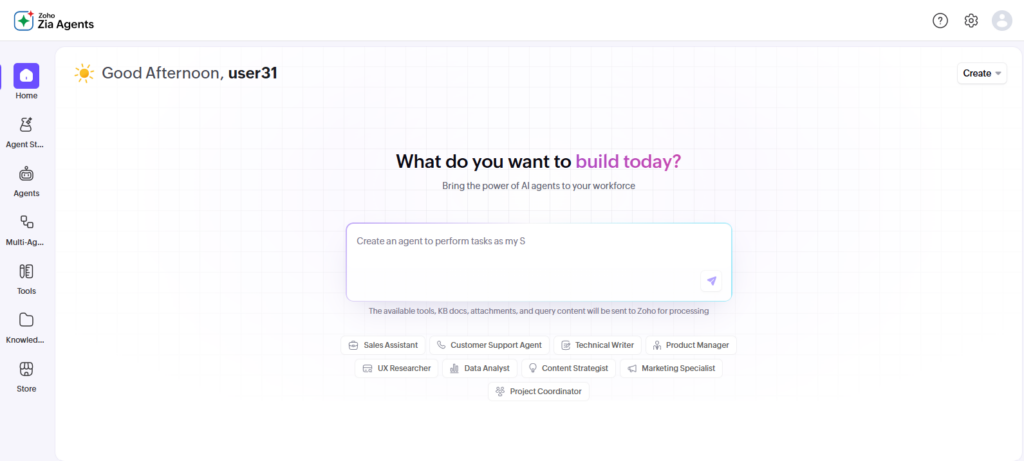
Click Create Agent.
You’ll be asked to provide basic information.
- Enter:
Agent Name
Example: Sales Assistant - Description
Example: Helps sales representatives retrieve customer information,
update CRM records, schedule follow-ups, and answer sales-related questions.
Choose an appropriate category based on your business requirements. – Click Next
Step 4: Choose the Agent Type
Depending on your CRM version, Zoho may offer multiple agent options.
Typical choices include:
- Customer Support Agent
- Sales Assistant
- Internal Business Assistant
- Custom AI Agent
Select the option that best matches your use case.
For this tutorial, choose:
Custom AI Agent – Click Continue.
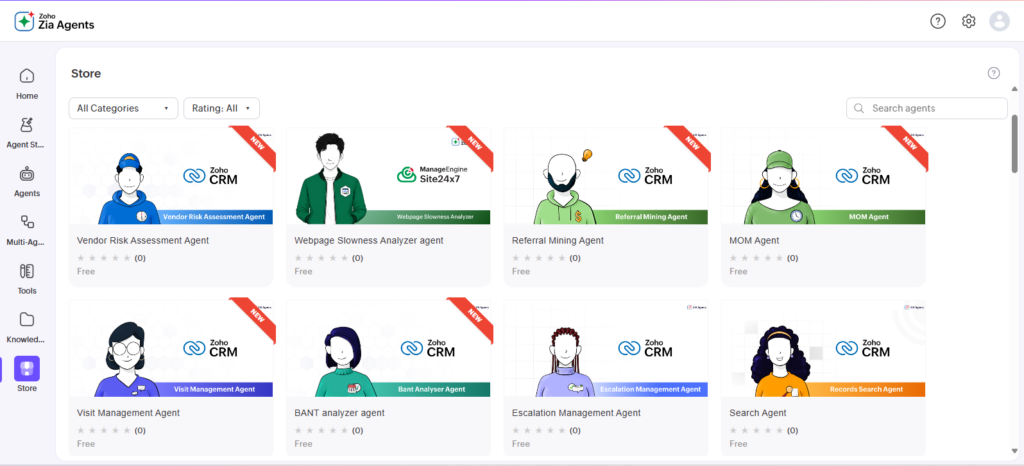
Step 5: Configure the Agent's Purpose
This is one of the most important steps.
Define what your AI agent should do.
Example:
- Answer CRM questions
- Retrieve Leads
- Retrieve Contacts
- Find Deals
- Create Tasks
- Update Records
- Schedule Meetings
- Generate summaries
Example description:
Help sales representatives quickly access CRM data, create activities, update customer
records, and answer business-related questions. The more specific your instructions, the better your agent performs.
You can further improve productivity by combining Zia Agent with workflow automation in Zoho CRM, enabling intelligent task execution and streamlined sales processes.
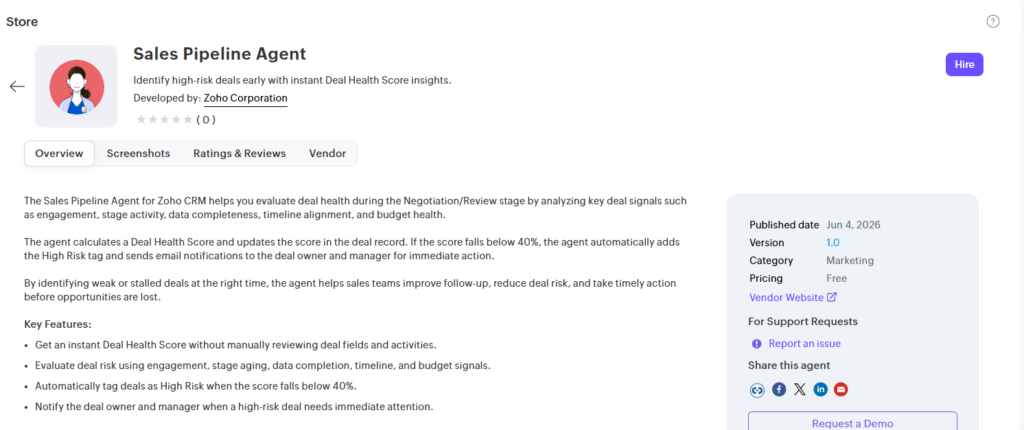
Step 6: Add Knowledge Sources
Your Zia Agent can use multiple knowledge sources.
Examples include:
- CRM records
- Notes
- Products
- FAQs
- Internal documents
- Knowledge base articles
- Uploaded documents
Select the sources your agent should reference.
For example:
- CRM Modules
- Knowledge Base
- Product Catalog
- FAQs
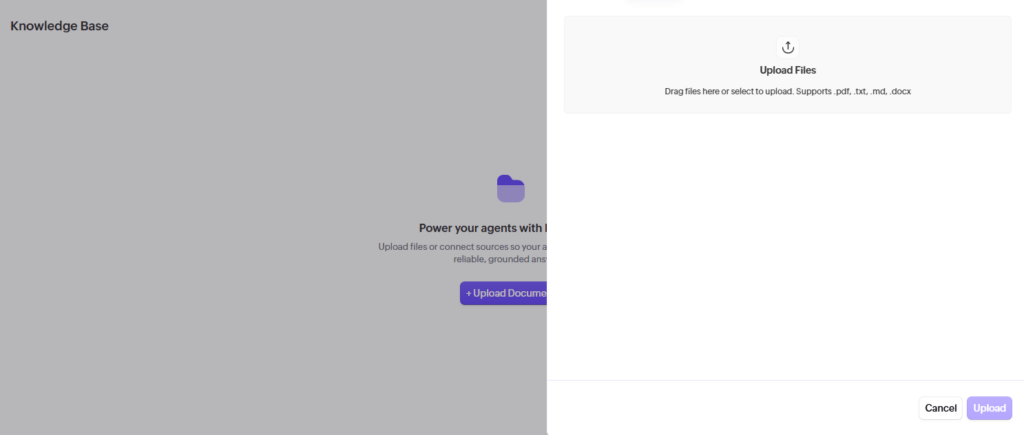
Step 7: Configure CRM Module Access
Choose which modules the agent can access.
Examples:
- Leads
- Contact
- Accounts
- Deals
- Tasks
- Calls
- Meetings
- Products
- Cases
- Custom Modules
Only grant access to the modules the agent actually needs. This improves both security and accuracy.
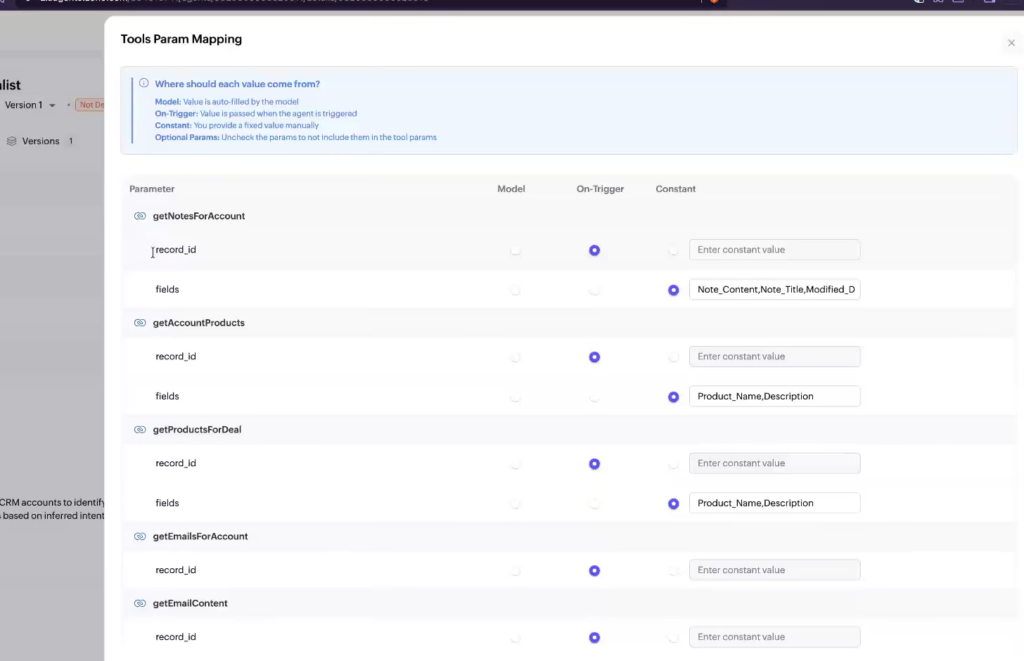
Step 8: Define Allowed Actions
Now specify what actions the AI is permitted to perform.
Typical permissions include:
- Read Records
- Create Records
- Update Records
- Delete Records (optional)
- Search Records
- Generate Reports
- Schedule Activities
- Send Emails
- Create Follow-up Tasks
For most organizations, it’s recommended to avoid enabling delete permissions unless
absolutely necessary
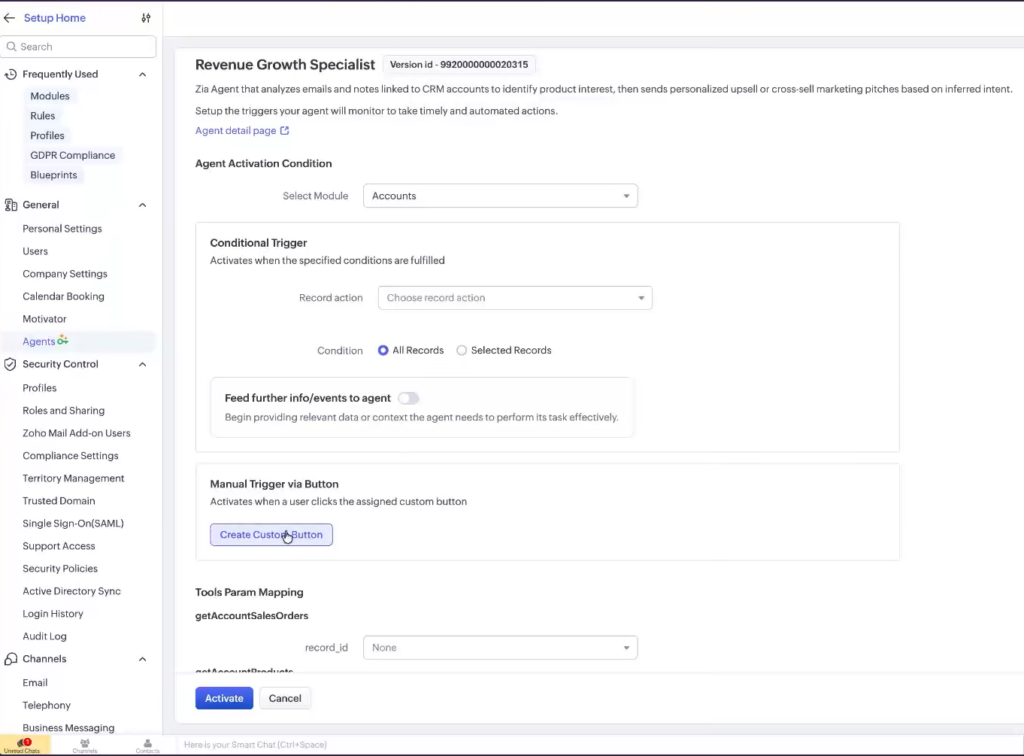
Step 9: Add Instructions (Prompt)
The system prompt defines the agent’s behavior.
Example:
- You are the Sales Assistant for our CRM.
Always provide concise and accurate responses. - Only use CRM data.
If information is unavailable,
inform the user politely. - Never make assumptions.
Help users retrieve customer information,
create follow-up tasks,
update deal stages,
and summarize CRM records
Good prompts significantly improve AI performance. If you’re planning to build more advanced AI assistants, Zoho’s Agent Studio documentation.
Step 10: Configure Conversation Behavior
Set options such as:
- Response style
- Formal or friendly tone
- Maximum response length
- Supported languages
- Context retention
- Follow-up questions
Choose settings that match your organization’s communication style.
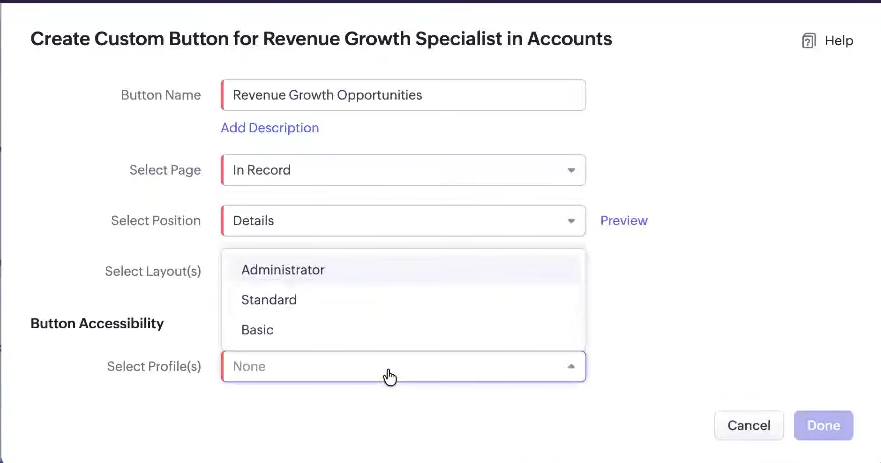
Step 11: Assign User Permissions
Select who can use the agent.
You can assign access to:
- Administrators
- Sales Managers
- Sales Representatives
- Support Teams
- Custom Roles
You may also restrict access by:
- Department
- Profile
- Role
- Territory
Step 12: Test the Agent
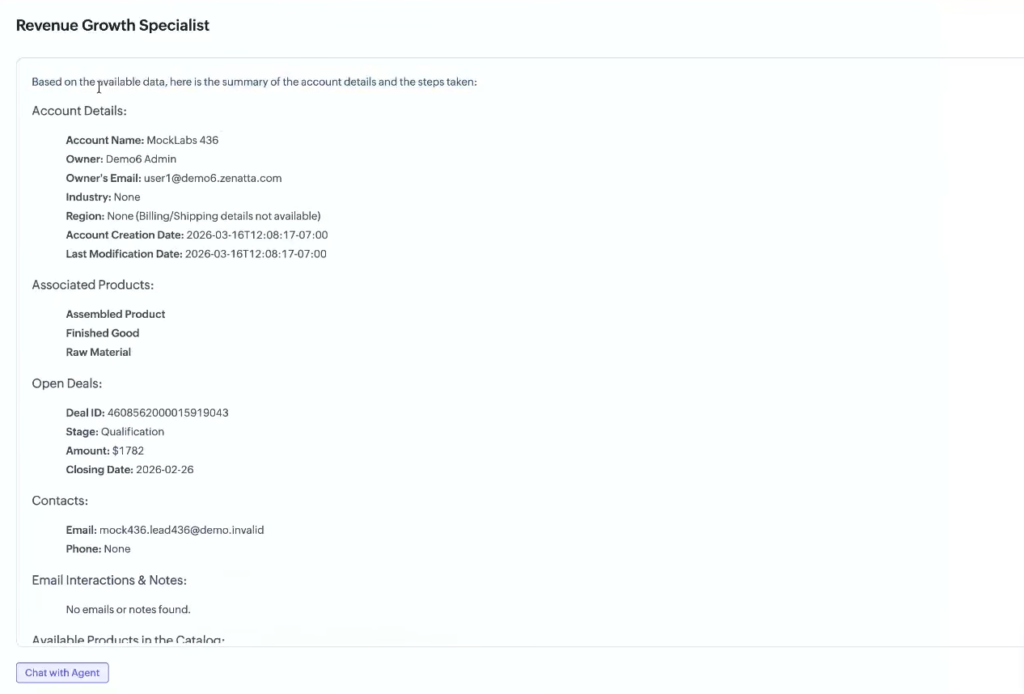
Before publishing, test your configuration.
Example prompts:
- Show my open deals.
- Find customer John Smith.
- Create a follow-up task tomorrow.
- Summarize the latest opportunity.
- List today’s meetings.
Verify that:
- Responses are accurate.
- Records are correctly retrieved.
- Actions execute successfully.
- Permissions work as expected.
Step 13: Publish the Agent
Once testing is complete:
- Click Publish.
- Confirm the deployment.
- Wait a few moments for activation.
Your Zia Agent is now available to authorized users For additional deployment recommendations and configuration details, see the official Setting up Agents in Zoho CRM guide.
Step 14: Monitor Agent Performance
After deployment, monitor:
- Number of conversations
- Successful responses
- Failed requests
- User feedback
- Frequently asked questions
- AI usage statistics
Review these metrics regularly to improve your agent over time.
You can also build custom dashboards and performance insights using the techniques covered in our Zoho CRM Reports Guide.
Best Practices
Follow these recommendations for optimal performance:
- Give your agent a clear purpose.
- Limit unnecessary permissions.
- Write detailed system instructions.
- Keep your CRM data clean.
- Regularly review conversation logs.
- Test after every major configuration change.
- Update knowledge sources frequently.
- Train users on effective prompting.
Common Issues and Troubleshooting
Agent Cannot Access CRM Records
Solution
- Verify module permissions.
- Check user roles.
- Confirm record-sharing settings
Incorrect Responses
Solution
- Improve the system prompt.
- Add better knowledge sources.
- Ensure CRM data is accurate.
Agent Cannot Perform Actions
Solution
- Review action permissions.
- Confirm API access if applicable.
- Ensure workflows are properly configured.
Slow Responses
Solution
- Reduce unnecessary knowledge sources.
- Simplify prompts
- Optimize CRM data quality
Example Use Cases
Organizations use Zia Agents for:
- Lead qualification
- Opportunity management
- Sales forecasting
- Customer support
- Internal knowledge assistance
- Activity creation
- CRM record lookup
- Meeting scheduling
- Follow-up reminders
- Business reporting
Benefits of Using Zia Agent
Deploying Zia Agent offers several advantages:
- Increased employee productivity
- Faster CRM navigation
- Reduced manual data entry
- Better customer service
- Improved decision-making
- Consistent responses
- AI-powered automation
- Time savings for sales teams
Final Thoughts
Deploying a Zia Agent in Zoho CRM is a straightforward process when approached
methodically. By carefully configuring the agent’s purpose, permissions, knowledge
sources, and behavioral instructions, you can create an intelligent assistant that
streamlines CRM operations and enhances user productivity.
Start with a focused use case—such as assisting sales representatives with record
retrieval and task management—then expand the agent’s capabilities as your team
becomes more comfortable using it. Regular testing, monitoring, and prompt refinement
will ensure your Zia Agent continues to deliver accurate, reliable, and valuable
assistance across your organization.
With the right setup, Zia Agent can become an indispensable part of your CRM strategy,
helping your team work smarter, respond faster, and focus on building stronger
customer relationships.
Ready to Deploy Zia Agent in Zoho CRM?
Deploying a Zia Agent is just the start. Zentegra’s Zoho experts help you configure AI agents, automate CRM workflows, and maximize your Zoho CRM investment.